HttpGemini - Gemini API Plugin for Unreal Engine
Bring Conversational AI to Unreal Engine with HttpGemini
A lightweight, powerful, and Blueprint-ready plugin to connect your projects with Google's Gemini API at runtime. No C++ required.
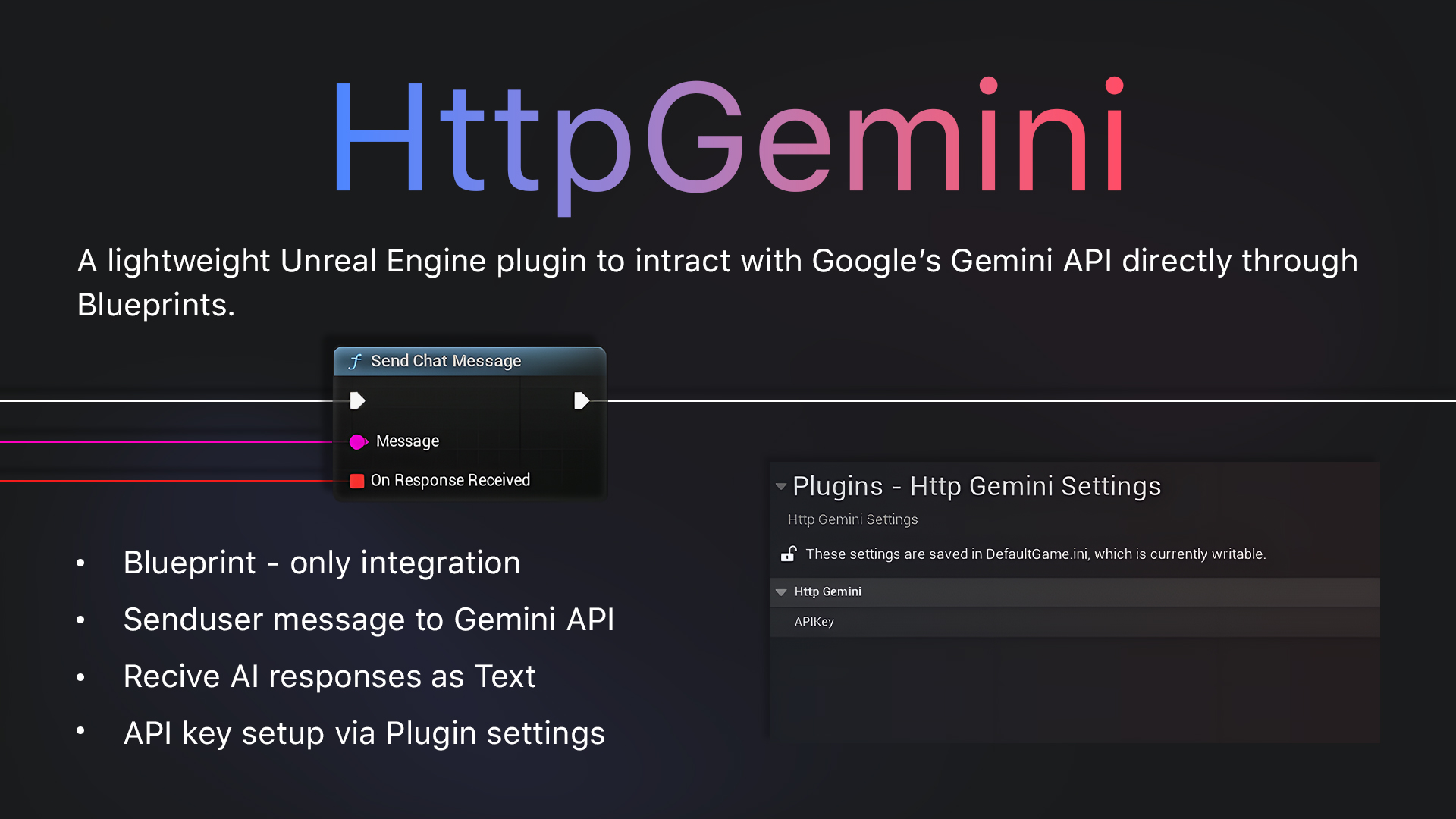
Interactive Blueprint Preview (`SendChatMessage` Node)
Powerful, Simple, Integrated
All the tools you need to build next-generation NPCs and intelligent systems.
- 🧩 100% Blueprint Ready: Access all functionality through a single, easy-to-use asynchronous node. Perfect for designers and artists.
- ⚡️ Runtime Communication: Send prompts and receive AI-generated responses live in your packaged game or application.
- ⚙️ Easy Configuration: Simply set your API Key and Gemini Model in the Project Settings. No code changes needed.
- 🚀 Asynchronous by Design: API requests are non-blocking, ensuring your game’s performance remains smooth with no freezes or hitches.
- 🛡️ Robust Error Handling: Get clear, actionable feedback on connection issues or invalid API keys directly in your Blueprints.
- 📦 No External Dependencies: Self-contained and built using Unreal’s native modules for maximum stability and compatibility.
Simple, Fast, and Powerful
Get up and running in just a few minutes with our intuitive workflow.
- Install & Enable: Add the plugin to your project and enable it in the Plugins window.
- Configure Settings: Go to Project Settings and paste in your API Key.
- Use in Blueprint: Call the
SendChatMessagenode and handle the response with a Custom Event.
Technical Specifications & Requirements
- Supported Engine Versions: 5.5, 5.6 & up
- Supported Platforms: Windows (64-bit), Android
- Valid API Key: A key from the Google AI platform is required. (Follow our 1-minute guide)
- Internet Connection: Required at runtime to communicate with the API.
Troubleshooting
Common questions and solutions.
Error: API Key not set
- Cause: The API Key field in the Project Settings is empty.
- Solution: Navigate to
Project Settings > Plugins > HttpGeminiand enter your valid API key.
Error: HTTP request failed
- Cause: A problem connecting to Google’s servers. This can be due to a lack of internet, a firewall, or an invalid/disabled API key.
- Solution: Check your internet connection and ensure your API key is correct. A
4xxresponse code indicates a problem with your request/key, while5xxindicates a server-side issue with Google’s API.
Error: Could not parse response or the response is empty
- Cause: The API returned an unexpected response structure. This most commonly happens if the Model selected in Project Settings is incorrect or unavailable.
- Solution: Double-check the Gemini Model selected in the plugin settings to ensure it is valid (e.g.,
Gemini 1.5 Flash).
Designed & Developed by R3D HILLS
For bug reports, feature requests, or support, contact us at: info@r3dhills.com